
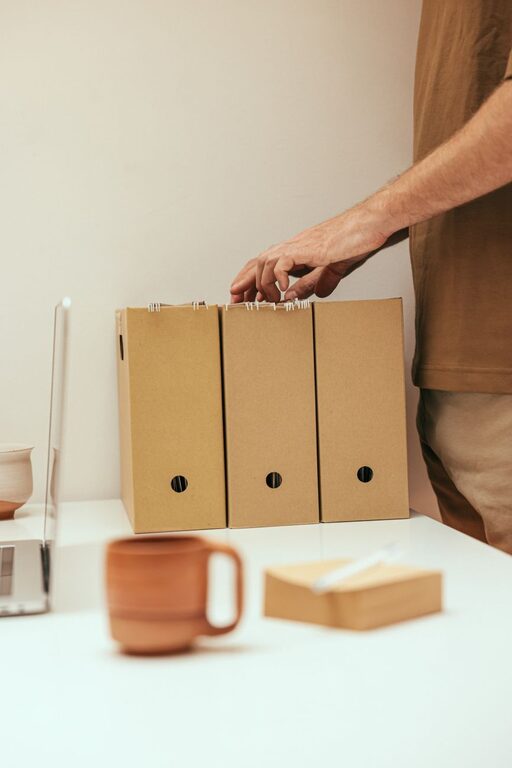
Keeping your computer files organized might seem like a small task, but it can make a big difference in your daily productivity and stress levels. Whether you use your computer for work, school, or personal projects, a well-organized file system saves time and prevents lost documents. In this post, we’ll explore practical tips for organizing files on your computer in a way that’s easy to maintain.
Why Organizing Files Matters
An organized computer helps you:
– Find files quickly without frustration.
– Avoid duplications and clutter.
– Back up important documents more easily.
– Improve your overall digital workflow.
Without a system in place, files can quickly accumulate in random folders or on your desktop, turning your digital workspace chaotic.
Step 1: Create a Logical Folder Structure
Start with Broad Categories
Begin by thinking about the main areas where your files belong. For example:
– Work
– Personal
– School
– Projects
– Photos
Break Down into Subfolders
Within each broad category, create subfolders for more specific topics. For example, under Work, you might have:
– Reports
– Presentations
– Meeting Notes
Under Personal, you could include:
– Taxes
– Recipes
– Travel
This hierarchy makes it easier to find what you need without sifting through unrelated files.
Step 2: Name Your Files Consistently
A clear file naming system helps you identify files at a glance. Here are some tips:
– Use descriptive names: Instead of “Document1,” use “ProjectReport_April2024.”
– Include dates: Use YYYY-MM-DD format for sorting by date, like “2024-04-15_MeetingMinutes.”
– Avoid spaces and special characters: Use underscores or hyphens (e.g., “Budget_2024”).
– Be concise but informative.
Step 3: Use Tags and Metadata (When Possible)
Some operating systems allow you to tag files with keywords. Tags make searching easier, especially if a file could belong in multiple categories. For example, a photo from a work event can be tagged as “work” and “event.”
Step 4: Regularly Sort and Delete Unnecessary Files
Schedule a weekly or monthly review of your files. During this time, you can:
– Delete duplicates and outdated files.
– Move files to their correct folders.
– Archive old files you rarely use but want to keep.
This habit prevents your folders from becoming overwhelming.
Step 5: Use Cloud Storage for Backup and Access
Services like Google Drive, Dropbox, or OneDrive can safely store your files online. Benefits include:
– Access files from any device.
– Protection against computer crashes.
– Easy sharing with others.
Organize your cloud folders similarly to your local system to keep consistency.
Step 6: Utilize Search and Shortcut Tools
Learn to use your computer’s search function effectively by adding keywords and file extensions. Also, create shortcuts or favorites for frequently accessed folders to save time.
Step 7: Automate with Software Tools
There are programs designed to help organize files automatically by date, file type, or other criteria. Popular options include:
– Hazel for Mac
– File Juggler for Windows
These tools can move or rename files based on rules you set, reducing manual effort.
Bonus Tips: Organize Your Desktop and Downloads Folder
Keep your desktop clean by limiting it to only active files or shortcuts you use daily. The Downloads folder often gets cluttered, so move files from there to proper folders regularly.
—
With these tips, organizing files on your computer becomes a manageable task instead of a chore. Start small, develop a system that works for you, and enjoy a more efficient digital workspace. Happy organizing!